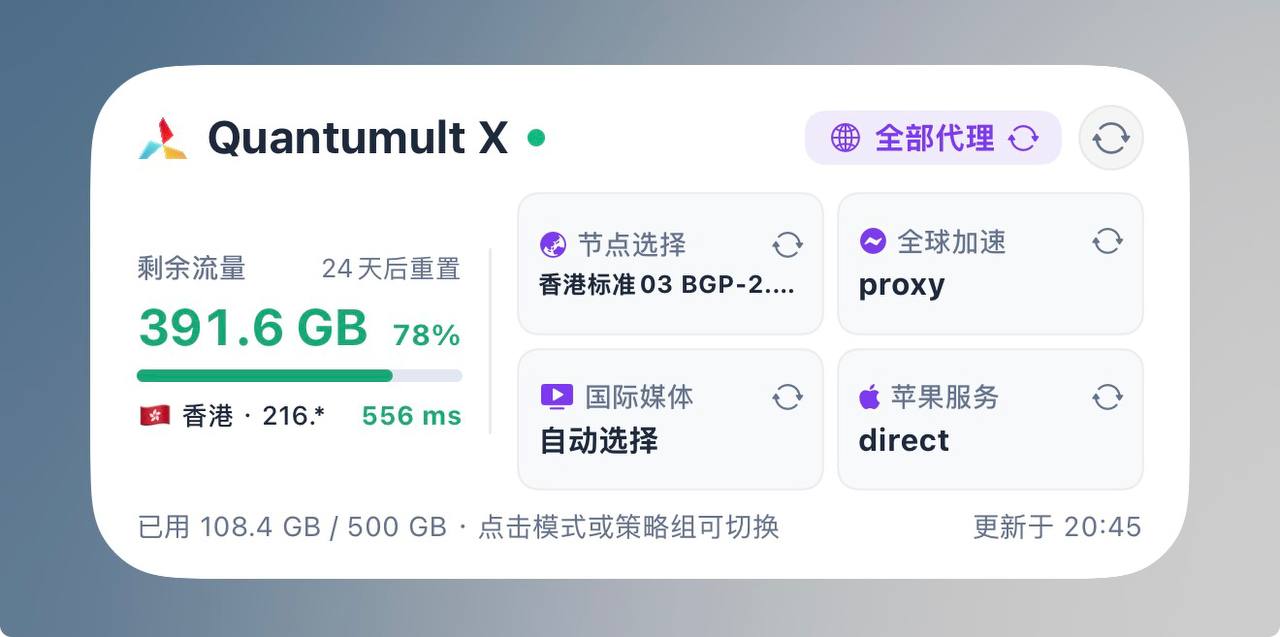
DashBoard-Kit · Quantumult X
This article introduces the import, bridge rewriting, subscription traffic, and policy group configuration for DashBoard-Kit, a desktop interactive widget for Quantumult X, as well as how to add and interact with desktop widgets.
On this page
DashBoard-Kit · Quantumult X
New 🚀 Quantumult X desktop interactive widget
Allows you to directly click on your iOS home screen to switch Quantumult X's operating modes (Splitting/Global/Direct), switch strategy group nodes, and monitor the remaining traffic, landing exit node, and latency of your service provider in real time.
1️⃣ Import the script with one click
Import Scripting
2️⃣ Configure Quantumult X's rewrite bridge (choose one of the following)
• Method A (Recommended · Remote rewrite subscription):
Open Quantumult X -> Rewrite -> Reference (Remote) -> Add the following link and enable the rewrite switch:
https://raw.githubusercontent.com/SylvanRoe/Scripting/refs/heads/main/DashBoard-Kit/qx_dashboard.conf
• Method B (Directly write to the configuration file):
Add the following line under [rewrite_local] in your Quantumult X configuration file:
^http:\/\/qx\.(lan|local)\/api url script-analyze-echo-response https://raw.githubusercontent.com/SylvanRoe/Scripting/refs/heads/main/DashBoard-Kit/qx_dashboard_bridge.js
3️⃣ Configure subscription traffic and strategy groups (optional)
Open Scripting -> Run DashBoard-Kit -> Click Quantumult X:
• Configure the service provider subscription link: Enter the subscription address for your service provider to read the actual remaining traffic and expiration time.
• Customize the 4 displayed strategy groups: By default, it will automatically match the strategy groups within Quantumult X. You can also manually enter the names of the 4 strategy groups you want to display (separated by commas).
4️⃣ Add the desktop widget
- Long-press on your phone's home screen to add the Scripting widget (supports adaptive small/medium sizes).
- Long-press the widget -> Edit Widget:
Select Script: DashBoard-Kit
Fill in Parameter: qx (or 圈x)
💡 Desktop Interaction Guide
• Click the mode capsule at the top: Cycle through Rule Splitting / All Proxy / All Direct modes in real time.
• Click a strategy group card: Immediately switch that strategy group to the next candidate node/sub-policy.
• Click the refresh icon in the top-right corner: Immediately sync the latest status, exit node IP, and speed test latency from Quantumult X.